License Activation
KafkaGuard On-Prem uses offline license keys — no internet connection or license server required. Your license key is provided by KafkaGuard sales and validates locally on your server.
Getting a License Key
- Purchase a KafkaGuard On-Prem plan at kafkaguard.com or contact sales@kafkaguard.com
- You'll receive a license key string that looks like:
eyJvcmci...(a long base64-encoded string with a dot separator) - Your license includes: organization name, expiry date, max clusters, and max users
Machine Fingerprint
KafkaGuard licenses are bound to a specific server using a machine fingerprint. This prevents license sharing across multiple servers.
Generate Your Fingerprint
Run this on the server where KafkaGuard will be installed:
./installer/fingerprint.sh
Output:
  Fingerprint: kgfp-a1b2c3d4e5f6

  Details (used to generate fingerprint):
    MAC:      aabbccddeeff
    Hostname: kafka-server-01
    CPUs:     8
    RAM:      32GB

  Send this fingerprint to sales@kafkaguard.com
  to receive your license key.
What is the Fingerprint?
The fingerprint is a short hash (not sensitive) generated from:
- Network interface MAC address
- Server hostname
- CPU count
- Total RAM
It uniquely identifies your server. You can safely email it to sales.
Send Fingerprint to Sales
Include the fingerprint in your license request:
Email: sales@kafkaguard.com
Subject: License Request — [Your Organization]

Fingerprint: kgfp-a1b2c3d4e5f6
Organization: [Your Org Name]
Clusters needed: [number]
Users needed: [number]
You'll receive a license key bound to your server.
What Happens on a Different Server
If the license is used on a server with a different fingerprint:
License fingerprint mismatch.
  Expected: kgfp-a1b2c3d4e5f6
  Actual:   kgfp-x9y8z7w6v5u4
The dashboard enters read-only mode. Contact sales for a new key if you need to migrate to a different server.
Verify Fingerprint
After installation, verify the fingerprint matches in Dashboard → Settings. The Settings page shows:
- Machine Fingerprint — your server's current fingerprint
- License bound to — the fingerprint in your license key
Both should match.
Activating During Installation
When running the installer, you'll be prompted for your license key. Before running the installer, generate your machine fingerprint and send it to sales@kafkaguard.com to receive your license key bound to your server:
# Step 1: Generate your machine fingerprint first
./installer/fingerprint.sh
# Send the output fingerprint to sales@kafkaguard.com

# Step 2: Once you have your license key, run the installer
./installer/install.sh

# During installation:
# License key: <paste your key here>
The installer saves it to your .env file automatically.
Activating on an Existing Installation
Method 1: Update .env File
# Open your .env file
nano .env

# Find or add the LICENSE_KEY line:
LICENSE_KEY=eyJvcmciOiJBY21lIENvcnAi...your-full-key-here

# Save and restart the API
docker compose -f docker-compose.onprem.yml --env-file .env restart api
Method 2: Environment Variable
# Set the license key and restart
export LICENSE_KEY=eyJvcmciOiJBY21lIENvcnAi...your-full-key-here
docker compose -f docker-compose.onprem.yml --env-file .env restart api
Verifying Your License
In the Dashboard
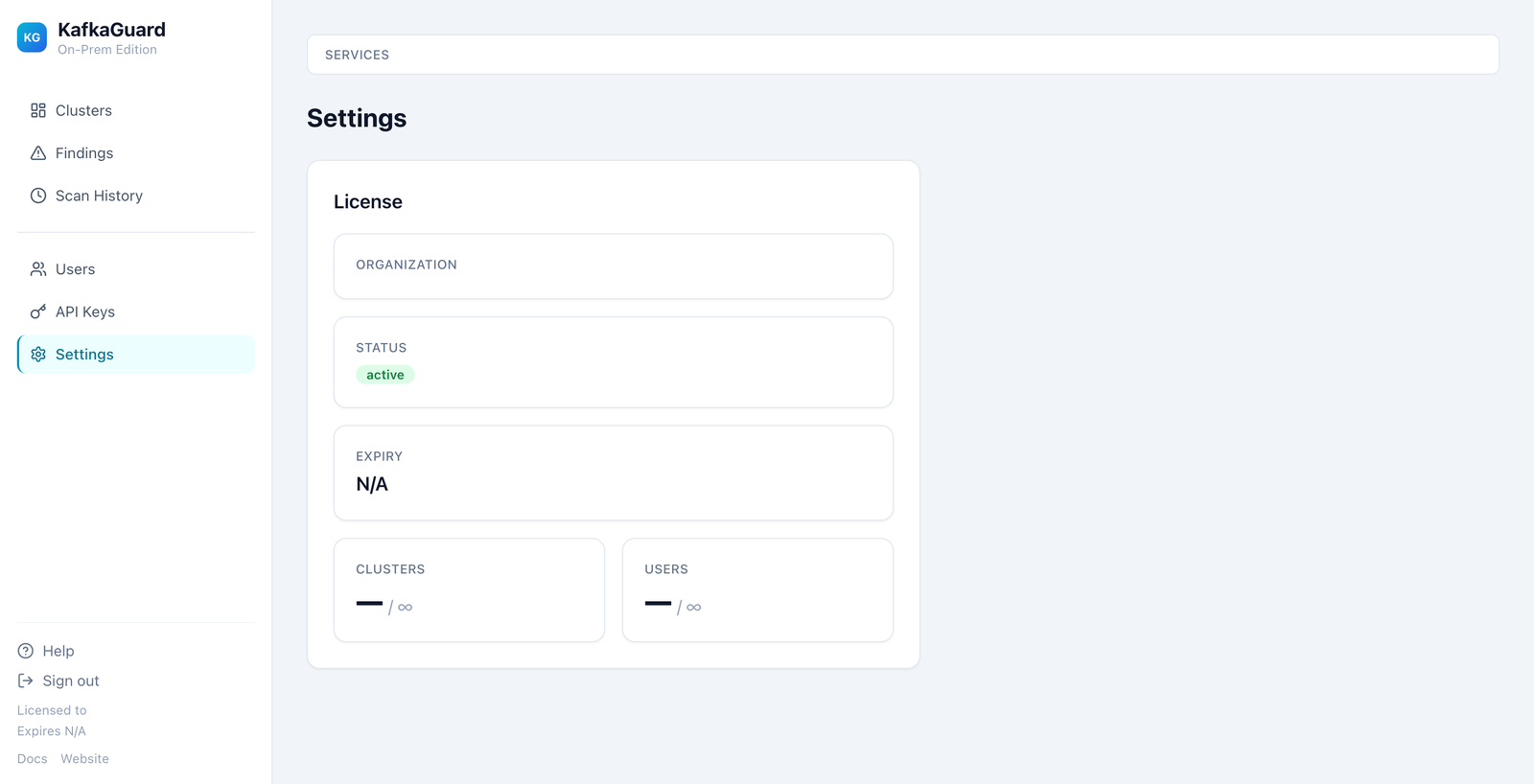
Go to Settings in the sidebar. The License panel shows:
- Organization — your licensed organization name
- Status — Active, Warning (≤30 days to expiry), or Expired
- Expiry — when your license expires
- Clusters — how many clusters you're using vs your limit
- Users — how many users vs your limit
Via API
curl -k https://your-server/api/v1/license \
  -H "Authorization: Bearer <your-jwt-token>"
Returns:
{
  "org": "Acme Corp",
  "expiry": "2027-06-15T00:00:00Z",
  "maxClusters": 25,
  "maxUsers": 100,
  "currentClusters": 3,
  "currentUsers": 5,
  "daysRemaining": 340,
  "status": "active"
}
License Status Levels
| Status | Condition | What Happens |
|---|---|---|
| Active | More than 30 days until expiry | Everything works normally |
| Warning | 30 days or less until expiry | Yellow banner in dashboard: "License expires in N days". All features still work. |
| Expired | Past expiry date | Red banner: "License expired — read-only mode". You can still view all data, but cannot upload new scans, create users, or modify findings. |
What Still Works When Expired
- Viewing clusters, scans, findings, and reports
- Logging in to the dashboard
- Downloading reports (JSON, CSV, HTML)
- Viewing API documentation
- Health checks
What Gets Blocked When Expired
- Uploading new scans (CLI
--uploadwill fail with 403) - Creating or deleting users
- Creating or revoking API keys
- Acknowledging or resolving findings
- Modifying cluster settings
Renewing Your License
- Contact sales@kafkaguard.com before your license expires
- You'll receive a new license key with an updated expiry date
- Update your
.envfile with the new key:
# Replace the old key
sed -i "s/^LICENSE_KEY=.*/LICENSE_KEY=your-new-key-here/" .env

# Restart the API to pick up the new key
docker compose -f docker-compose.onprem.yml --env-file .env restart api
- Verify in Dashboard → Settings that the new expiry date is shown
Running Without a License
If you don't have a license key yet, set LICENSE_KEY=skip in your .env file. This runs the product with:
- Unlimited clusters and users
- No expiry warnings
- Full functionality
This is intended for evaluation and development only.
Troubleshooting
"License expired" but I just renewed
Make sure you restarted the API after updating the .env file:
docker compose -f docker-compose.onprem.yml --env-file .env restart api
"Invalid license signature"
Your license key may be corrupted. Check:
- No extra spaces or line breaks in the key
- The key is a single line with exactly one dot (
.) separator - Contact support if the issue persists
Dashboard shows "Licensed to: Unlicensed"
The LICENSE_KEY environment variable is empty or set to skip. Set a valid license key in .env.
Support
- Email: support@kafkaguard.com
- Website: kafkaguard.com